Product
NI Trance Gate
A tempo-locked step gate: rhythmic chopping locked to song position, per-step ADSR, ties, per-step amount, a fade-in that introduces the steps one at a time, and 8 slots, each a complete sound. A VST3 for macOS (Linux and Windows follow) with a native editor, and a Schwung module for the Ableton Move.
It is the same engine in both, and that is asserted rather than claimed.
tg-capi wraps the core in a C ABI for the plugin and tg-move wraps it in
Schwung’s audio_fx vtable for the Move; both are members of one Cargo
workspace and both reach tg-core by relative path, so there is nothing to
keep in sync. tests/render_plugin.c then renders four seconds through the
plugin’s own audio path — float, split channels, a DAW-shaped transport — and
the result is byte-for-byte identical to the module’s reference render.
Your pattern is part of the project
Everything you draw — which steps sound, the ties, each step’s amount, the arrival order, all eight slots — is saved with your Live set and comes back when you reopen it. Draw a pattern, save, close Live, open the set again: the pattern is the one you left, not the one the set was first loaded with.
Slots: eight complete sounds
Each of the 8 slots remembers everything except the Slot choice itself: the pattern (steps, ties, amounts, length, arrival order) and every control — Rate, Amount, Width, Attack, Decay, Sustain, Release, Curve, Env Time, Join Neighbors, Fade, Fade Shape and Fade Dir. Changing a control changes it only in the slot you are on.
Switching slots recalls the whole sound, whether you pick the slot in the editor, automate Slot in Live, or turn the Slot knob on the Move. In Live the plugin’s controls and automation lanes show the recalled values. The switch is smooth: Amount and Sustain glide, the envelope carries on from where it is, and the gate stays locked to the bar even when the new slot uses another Rate.
For example: put a tight 1/16 gate at 100 % Amount in slot 1 and a soft 1/8 swell at 40 % in slot 2, then automate Slot from 1 to 2 for the breakdown.
Projects and Move presets saved before slots held their own sound open with their settings copied into all 8 slots, beside each slot’s own pattern, so they sound exactly as before.
Slot files
Export slot saves the current slot to a .nitgslot file; Export all
saves all 8 slots to a .nitgbank file. Import opens either kind: a slot
file replaces the current slot, a bank replaces all 8. In Live they are icons
in the column right of the panels, and the hint bar names each one. The dialog remembers the
last folder you used, and the hint bar says what happened, for example
“Imported Bassline.nitgslot into slot 3.”
A file that is not a Trance Gate slot file, or was written by a newer version, is refused with the reason, and nothing changes. Imported slots are saved with your Live set. The files are readable text, so they are easy to share. Slot files are a plugin feature; the Move keeps its own presets.
Patch interchange
Copy and paste work on a slot. The copy icon (Copy slot) puts the current slot — its pattern and its whole sound — on the clipboard. The paste icon (Paste slot) puts what is on the clipboard into the current slot. The other slots are not touched.
For example, to start slot 2 from slot 1:
- Select slot 1 and press copy. The hint bar says “Copied slot 1.”
- Select slot 2.
- Press paste. The hint bar says “Pasted into slot 2.”, and slot 2 now plays slot 1’s pattern with slot 1’s Rate, Amount, envelope and fade. Change it from there; slot 1 stays as it was.
The same works between two Trance Gates — copy on track 1, paste on track 2 — and between sets. What is copied is the text of a slot file, so you can paste it into a message or a note and paste it back later.
Paste reads what is on the clipboard and acts on it:
| on the clipboard | what paste does |
|---|---|
a slot (copy, or the text of a .nitgslot file) | replaces the current slot |
a bank (the text of a .nitgbank file) | replaces all 8 slots |
| a whole patch | replaces all 8 slots and every setting |
A whole patch is the plugin’s saved state, which is the Move patch, verbatim, and it is also what the copy icon put on the clipboard before version v2026.10.06.2. So a patch from the Move, or one copied from an older Trance Gate, still pastes — and still replaces every slot, as it always did.
Anything else on the clipboard is refused, and nothing changes: the hint bar says “Failed to paste: The clipboard doesn’t hold a Trance Gate slot.”
The plugin reads and writes the clipboard itself, so copy and paste work inside Live, where the host keeps ⌘C and ⌘V for its own menu.
The fade
Every step carries an arrival number, and Fade introduces them in that order, evenly spaced — the step ranked r of n arrives at exactly r/n.
Out (the Fade Dir parameter, Dir on the Move) chooses which end the pattern is built up from. The knob means the same thing both ways: how much of the drawn pattern is present. Only the missing part differs.
| what arrives, one at a time | an un-arrived step | at 0% | at 100% | |
|---|---|---|---|---|
| Out off (In) | the steps you drew ON | is a gap — silent | silence | the pattern |
| Out on | the steps you drew OFF, the holes | sounds, like an ordinary step | every hole filled | the pattern |
So 100% is the pattern either way, which is what makes it the neutral default and lets the direction be switched at rest without changing a sample.
Out fills holes; it does not bypass the gate. At Out 0% every step sounds, and below Width 100% the gate still pulses — a denser gate, not an open one. Amount is what bypasses.
Soft ramps a step in on its own level, the same quantity a vertical drag in a pad sets. Hard jumps it on. An arriving hole ramps the other way — it starts as a full step and fades down to nothing, which is a gap. They are one formula and a threshold:
w(r) = clamp(f·n − (r−1), 0, 1)     soft
w(r) = w_soft(r) ≥ 1 ? 1 : 0        hard
so the two agree at every arrival boundary — the switch changes a step’s shape, never when it arrives — and in soft mode exactly one step is ever part way in.
A step the fade has not reached is a gap, not a silent step that is on. The difference is audible: ties and Join Neighbors ask the pattern whether a step sounds in order to decide whether to hold a gate open through it, so a step that has not arrived must not keep its neighbour’s gate open.
The order is the point. In position order a fade can only be a left-to-right wipe; shuffled, it is a build-up. Randomize shuffles it along with the pattern, Shuffle order shuffles it alone, and Set order in the Fade panel lets you tap the steps into the sequence you want — or click a number on a pad and type one. Typing a number that is taken swaps the two steps, so nothing between them moves.
The hits and the holes carry separate orders, ranked among themselves, because a step is one or the other and never both. Fade Out sequences the holes.
Randomize
Randomize fills the current slot with a Euclidean gate — a random number of hits spread as evenly as the length allows, always with one on the downbeat — and a shuffled arrival order. Sixteen coin flips reads as noise rather than as a trance gate, which is why it is not that. Ties are cleared and the levels return to full: they describe a pattern that no longer exists.
It does not touch the playhead, so it is safe to press mid-bar.
Quiet tracks fill the Signal plot
The Signal tab draws your audio before and after the gate, and it zooms to fit
the track: a pad peaking at −20 dBFS fills the band instead of a sliver through
its middle. The range glides with the material, 3 dB above its loudest moments
and never below −48 dB — up within a tenth of a second when something louder
arrives, down slowly after two quieter seconds, still while the level is — and
the end of the caption always says what it is (−17 dB: the top edge is
−17 dBFS). The gate’s outline is a gain and
does not zoom. A double-click on the plot holds it at full scale (0 dB fixed)
until the next one; the manual has
the details.
What the host can automate, and what it cannot
Fifteen controls — Slot, Length, Rate, Amount, Width, the four envelope stages, Join Neighbors, Env Time, Env Curve, and the fade’s knob, shape and direction — are ordinary host parameters. Automate them, and they behave the way a DAW expects. Fade is the one this matters most for: a build-up is that knob drawn across eight bars.
Every one of them except Slot belongs to the current slot. When the Slot changes, the plugin moves each of them to the new slot’s value and tells the host it did, so the automation lanes and Live’s own controls show the recalled sound. Automating any of them writes into the slot that is playing.
The pattern is not among them, and that is a decision rather than an omission. Which steps sound, which are tied, how loud each one is and when it arrives would be 128 × 8 = 1,024 more parameters. So the pattern travels in the saved state, which is the same model the Move module uses and the reason a patch can cross between them at all.
Timing
The gate follows song position, so it stays bar-aligned however long it runs and survives a seek. Rate is one step’s length: at 1/16 a 16-step pattern is one bar, and a pattern can be up to 128 steps — eight bars at 1/16.
The envelope stages are measured against the gate, not the clock. Attack, Decay and Release are a percentage of the step’s open time — one step at the current Rate, times Width — from 0 to 200 %. So the envelope keeps its shape when the tempo changes: a Decay of 50 % is half the gate at 90 BPM and at 140 BPM. Env Time only chooses how the readouts show it, as milliseconds at the current tempo or as that percentage; the sound is the same either way.
No edge is shorter than 1 ms. A stage of 0 %, or a short one at a fast rate or a narrow Width, still takes a millisecond: an instant jump in gain clicks on any sustained sound. The slow rates are unchanged — at 1/16 and 120 BPM the default attack is already 2 ms. Every edge also starts and ends exactly where it falls, between samples, so the gate sounds the same whatever buffer size Live runs at.
A step at level 0 is a gap. Dragging a step’s level to the bottom closes the gate there, exactly as an off step does, and the step after it opens again — with Join Neighbors too. Switching a step on brings it back at full level.
Changes are smooth. Amount and Sustain glide to a new value over about 5 ms instead of jumping, so turning or automating them mid-note does not click. Starting the transport picks up from the level the gate is already at, and stopping it lets the gate open over the same few milliseconds — neither one clicks any more.
With the transport stopped the gate holds open and audio passes.
| Hosts | Ableton Live — VST3 Ableton Move — Schwung audio_fx module |
|---|---|
| Engine | engines/trance-gate |
| Crates | tg-coretg-capitg-move |
| Tests | tg_coretg_render_abtg_curvestg_envelopetg_processortg_host |
A macOS bundle that is not notarised will not load until its quarantine attribute is cleared — the release notes say whether it is and carry the command, and so does the installation section below.
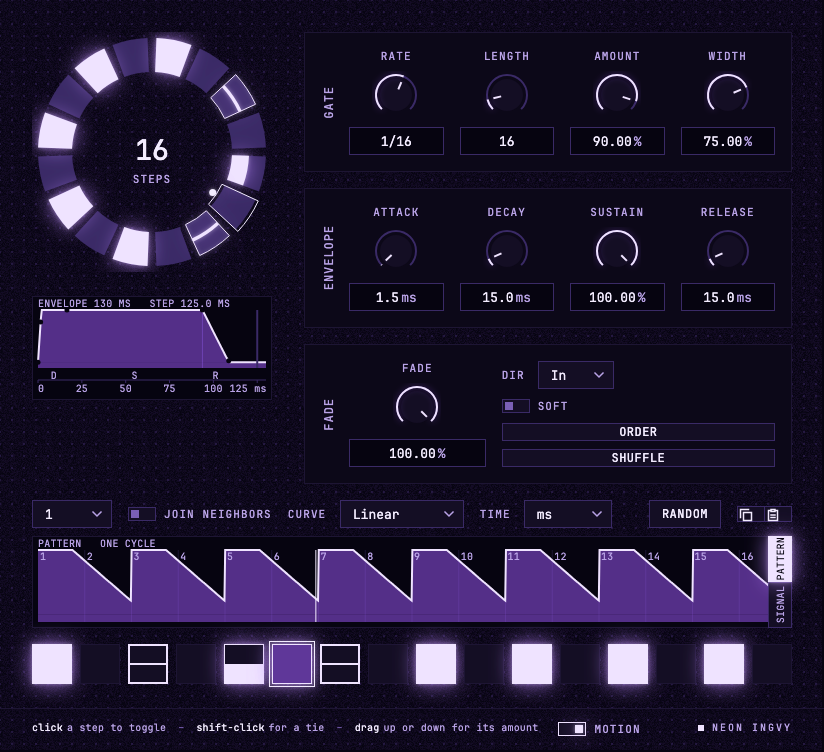
Ableton Live Interface
The editor shows the pattern as a ring, the controls in three panels, and the steps as pads underneath. It is the same picture the Move draws, at a size a screen allows.
Hover or focus any control to see what it does in the bar at the bottom. Point at the Rate knob and the bar reads “Rate — the length of one step, synced to the song tempo.”; move away and it shows the window’s usual tips again. The same works from the keyboard: Tab to a control and the bar describes it. While the bar is reporting how a copy, paste, export or import went, that report stays until it times out.
The ring
The ring is the pattern, and it mirrors the Move display. Filled arcs are steps that sound, plain grey ones are gaps, and the fill reaches further out with the step’s Amount. A dot inside the ring is the playhead; an outline round a wedge is the step you are editing.
While the fade is part way in, a step that has not arrived yet draws as a hollow arc, outlined with no fill: it is in the pattern, so it is not a gap, and it is not sounding, so it is not a fill. Under Fade Out, a hole that still sounds is filled, more faintly than a step you drew, and has no outline. The pads say the same things the same way.
Editing a step
| gesture | what it does |
|---|---|
| click a pad | toggles the step, and selects it. A step you switch on starts at full Amount |
| shift-click a pad | sets a tie — the step holds through the next one without retriggering |
| drag up/down on a pad | sets that step’s Amount. Drag to the bottom and the step turns off |
| click a wedge on the ring | toggles that step, like its pad |
| drag around the ring | paints the same state across every wedge you cross |
For example, to make step 5 half as loud as the others: press on its pad and drag down to the middle of the pad. To fill a whole bar at once, press on the ring’s first wedge and sweep round.
Controls
Gate holds the four that decide the shape of the pattern in time:
| Rate | the length of one step, as a musical division — 1/1T through 1/128, including triplets |
| Length | how many steps the pattern has, 1–128. The pads wrap at sixteen to a row and the window grows to fit |
| Amount | dry/wet for the whole effect. 0% is a true bypass |
| Width | how much of a step stays open before it releases, 5–100 % |
Envelope holds Attack, Decay, Sustain and Release, which shape every step. Attack, Decay and Release are measured against the gate — see Timing — and Sustain is a level. Amount and Sustain glide over about 5 ms when they move, so sweeping them never clicks.
Fade introduces the steps one at a time, in the order they carry:
| Fade | how much of the drawn pattern is present. This is the knob a build-up is drawn on |
| Out | a switch. Off, the fade brings the steps you drew in, from silence. On, it brings the holes in, from a gate that has none. 100% is the pattern either way |
| Soft | a step arriving ramps in on its own level rather than jumping on. An arriving hole ramps the other way — from a full step down to a gap |
| Set order | tap the steps in the order the fade should introduce them. The button counts how far into the sequence you are, as n/m; press it again to finish. A step already named in this pass keeps its place; press Set order twice to start again |
| Shuffle order | a random arrival order, leaving the pattern alone |
The numbers on the pads are the arrival order, and they are drawn only while Set order is on or the fade is part way in — the rest of the time they would be clutter, because the fourth-step borders already say where the bars are.
Click a number to type one. If the number you type is already taken, the two steps swap, so nothing between them moves. The hits and the holes are ranked separately — a step is one or the other, never both — so Fade Out sequences the holes and Fade In the hits.
A pad’s border is what you drew; its fill is what you hear. A step waiting to arrive keeps its outline with no fill; a hole that Fade Out has not removed yet is lit with no outline. Neither can be mistaken for the other, or for a step you drew.
Below those, four controls decide how the rest is read:
| Slot | which of the 8 slots is playing and being edited — each a whole sound, its own pattern and its own settings |
| Join Neighbors | consecutive on-steps run together instead of retriggering |
| Curve | Linear, Exponential or S-Curve, applied to the envelope stages |
| Time in % | a switch: on, the stages are read as a % of the gate’s width; off, in ms — the same envelope, two ways of asking for it |
These fifteen are ordinary host parameters and automate normally. The pattern and its arrival order are not among them — see what the host can automate. Turned with Live’s transport stopped, they still show at once: the Length detents, the stages’ milliseconds and the Pattern plot follow the knob, as the sound will when playback starts.
Bypass (Live’s own switch on the device) fades over 10 ms either way, so switching it while the gate is shut is not a click; once the fade is over, the audio passes untouched, bit for bit. The gate keeps running while bypassed, so it comes back in time.
Loops. In a looped region the gate follows Live’s loop to the sample: the audio after the loop’s end is gated from the loop’s start, in the very block the loop wraps in.
Working with knobs and readouts
Every knob works the same way.
- Drag up or down to turn it. Hold Shift as you press for fine control — the same drag moves it a fifth as far.
- Double-click a knob to reset it to its default. To put Amount back to 100 %, double-click the Amount knob. The reset is one ordinary edit, so Live’s undo takes it back.
- Click the readout under a knob to type a value. The field opens with the text selected: type, then press Enter to commit or Escape to leave the value as it was. Clicking elsewhere commits too.
Typing a stage time follows the Time in % switch, and a unit you type wins
over it. With the switch off, typing 40 into Attack sets 40 milliseconds;
typing 25 % sets a quarter of the gate even though the readout is showing
milliseconds. With it on, 40 means 40 % and 40 ms still means
milliseconds.
Length holds on whole bars
Most patterns are half a bar, a bar, two bars or four bars long, so the Length knob makes those lengths easy to hit. Small marks outside its arc show where they are, and the mark you are on lights up. While you drag past one, the knob stays on that length for a short stretch before it moves on. You can land on it without aiming, and you never get stuck there.
Say Rate is 1/32 and the set is in 4/4. A bar is 32 steps, so Length holds at 16, 32, 64 and 128. To get a two-bar pattern, drag Length up from where it is. When the readout says 64, let go. Change Rate to 1/16 and the marks move to 8, 16, 32 and 64. They follow Live’s time signature too: at 1/16 in 3/4 they are 6, 12, 24 and 48. A triplet rate holds on its own bars: 1/16T in 4/4 holds at 12, 24, 48 and 96. The marks always count in the current slot’s Rate.
The other ways to set Length ignore these lengths. Hold Shift as you drag to pass through them, or type any length into the readout. With the knob focused, Page Up and Page Down jump straight to the next one. The holds are part of the editor only: automation and Live’s own controls set Length one step at a time, as before.
The keyboard
Everything the pointer does, the keyboard does too. Tab moves between controls; a focused control shows a ring.
Space always starts and stops Live’s transport, also when the plugin window has focus — so the controls answer Enter instead. The one exception is typing: while you type a value into a readout or a new place into a pad’s number, Space is a space.
| on | key | what it does |
|---|---|---|
| a knob | ↑ / → and ↓ / ← | turns it by 1 % of its range (Shift: 0.2 %). Rate and Length: one division or one step |
| Page Up / Page Down | by 10 % (Rate: a tenth of its list; Length: to the next whole-bar length — see above) | |
| Home / End | to the minimum or the maximum | |
| Enter | opens the readout to type a value | |
| the pads | arrow keys | move between pads (↑ and ↓ jump a row) |
| Enter | toggles the focused step, like a click (with Shift: a tie) | |
| Alt + ↑ / ↓ | raises or lowers that step’s Amount by 10 % (Shift too: 1 %) | |
| a digit | on a pad whose arrival number shows, opens it to type a new place (Enter keeps, Escape cancels) | |
| the ring | ↑ / → and ↓ / ← | Length, one step longer or shorter |
| Page Up / Page Down | Length to the next whole-bar length (four steps where there is none) | |
| Home / End | Length 1 or 128 | |
| the Pattern / Signal tabs | arrow keys | switch tab |
| a menu (Slot, Curve) | Enter, ↑ or ↓ | opens it; the arrows choose, Enter keeps, Escape closes |
| a switch (Out, Soft, Join Neighbors, Time in %) | Enter | turns it on or off |
| a button (Set order, Shuffle order, the icons) | Enter | presses it |
For example, to tie step 9: Tab to the pads, press → until step 9 is focused, then Shift + Enter. To thin it out, Alt + ↓ twice takes it to 80 %.
Randomize
Randomize is the last icon in the column right of the panels. It fills the current slot with a new pattern and a new arrival order — a Euclidean gate, so the hits are spread evenly and one always lands on the downbeat. Ties are cleared and the levels return to full. It does not disturb the playhead, so it is safe to press while the transport runs.
The envelope plot
Under the ring, one gate on a millisecond axis: the envelope the patch produces, from the step opening to the release dying away. It is the engine’s own rendering, not a drawing of the controls — the plugin runs the patch through a spare copy of the engine and plots what comes out — so the curve, the Curve shape and the point where the release outlives the step are exactly what you will hear.
Pattern and Signal
Two tabs, laid over the right edge of the plot they switch between.
Pattern plots one cycle of the gate — and it is not a drawing of the gate, it is the gate: the plugin renders the real patch through a spare engine with a steady input and sends the samples, so a release that outlives its step, a tie, Join Neighbors and the fade are all correct because none of them is being reasoned about. Amount is the one thing applied when it paints, because it is a floor under the curve rather than a different curve.
Signal shows the dry input against what the plugin did to it, on the same axis: one cycle of the pattern, standing still, with the trace filling left to right and a thin grey line marking where it is being written. The envelope is drawn over it as an outline, so the gap between the outline and the trace is the difference between what the gate asked for and what the audio did. The dry is grey rather than a dimmer violet because the difference between the two should not need a legend. Bypassed, the Signal shows what you hear: the trace is the input itself, lying on the dry.
How loud the Signal is drawn
The Signal zooms to fit the track. A synth peaking at −15 dBFS would be a
sliver a quarter of the band high on a full-scale axis, so the plot draws the dry
and gated traces on a range that follows what is playing, and says which at the
right end of its caption, just left of the tabs: −12 dB means the band’s top
edge is −12 dBFS. The range sits 3 dB above the loudest peak of the last two
seconds — the whole cycle on screen counts — so the loudest moments reach
about seven-tenths of the way to the edge. It moves smoothly, never in jumps,
and only the label is rounded, to whole decibels:
- Louder material lifts it quickly — past the new peak within a tenth of a second. A sudden very loud cycle can run off the edge for that tenth of a second; it is cut at the edge, never drawn outside the band.
- Quieter material lowers it slowly. The plot holds the range for two seconds after the last loud moment, then eases down: two thirds of the way in a second and a half, nearly all of it in about five. A track whose level stays the same keeps the range perfectly still — nothing pumps with the gate.
- Silence stays silence. The range never goes below
−48 dB, so a break in the track does not blow its noise floor up to fill the band. Over a full-scale track it reads+3 dB: the headroom above 0 dBFS.
Only the audio zooms. The envelope outline over the trace is the gate’s gain, not a level, so it stays on its own scale: wherever the gate is fully open the outline runs along the band’s edges whatever the range, and the trace, drawn larger, now reaches up towards it.
For example, gate a pad peaking at −20 dBFS and the caption ends in −17 dB: the
pad fills the band and every step’s attack and release is plain to see. Push the
pad’s fader up by 12 dB and the range rises to −5 dB as the louder cycle is
written; pull it back and the band eases back to −17 dB a few seconds later.
Double-click the Signal plot to hold it at full scale; the label then reads
0 dB fixed. Double-click again to let it follow the track. The choice lasts as
long as the plugin window is open: closing and reopening it starts on the
following range again. The Pattern plot is a gain throughout and never zooms.
Copy and paste
Right of the panels stands a column of six icons, the window’s actions. The first two are Copy slot and Paste slot; point at any of them and the hint bar names it. Use the icons, not ⌘C and ⌘V: Live keeps those keys for its own menu, so a plugin window never receives them. The icons work anyway, because the plugin reads and writes the clipboard itself.
To start slot 2 from slot 1:
- Select slot 1 and press Copy slot. The hint bar says “Copied slot 1.”
- Select slot 2.
- Press Paste slot. The hint bar says “Pasted into slot 2.” Slot 2 now has slot 1’s pattern and its whole sound; slot 1 is unchanged.
To copy a slot to another track, press Copy slot in one Trance Gate and Paste slot in the other, on the slot you want to replace.
A whole patch on the clipboard — a Move patch, or what the copy icon put there in a Trance Gate older than v2026.10.06.2 — still pastes, and replaces all 8 slots as before. Anything else is refused with the reason in the hint bar, and nothing changes. See Patch interchange.
Export and import
The next three icons in the column, Export slot, Export all and Import, save the current slot or all 8 slots to a file and load them back; see Slot files. Point at an icon and the hint bar names it. The result shows in the hint bar for a few seconds. All three work from the keyboard: Tab to them and press Enter.
Installing and updating
-
Quit Live completely — not just the set. Live keeps every plugin it has loaded in memory until it quits, so a bundle replaced while it runs is not the one you hear.
-
Download
trance-gate-<version>-macOS.zipfrom the release (universal: Apple silicon and Intel) and copyNITranceGate.vst3from it into~/Library/Audio/Plug-Ins/VST3, replacing the one there. -
A bundle that is not notarised is refused until its quarantine attribute is removed:
xattr -dr com.apple.quarantine ~/Library/Audio/Plug-Ins/VST3/NITranceGate.vst3 -
Start Live, open Settings → Plug-Ins, turn on Use VST3 Plug-In System Folders if it is off, and press Rescan. NI Trance Gate appears in the browser under Neon Ingvy.
NI Trance Gate is a VST3, and only a VST3, for macOS; Linux and Windows follow in a later release. Updating from a release before v2026.10.08.2? The changelog says which older bundles to delete, and what a set that used one of them needs.
Signing needs an Apple Developer ID and a notarytool round trip; until those
exist, the xattr command is the difference. It is a property of the
distribution, not of the plugin.
The licence notices travel with the plugin: the bundle carries LICENSE,
THIRD_PARTY_LICENSES.md, the font’s OFL.txt and the texts of the licences
of what it is built with (AGPL-3.0.txt, Apache-2.0.txt) in
Contents/Resources/.
Sets saved with an earlier version open as they were saved: the plugin keeps the identity, the parameters and the saved state of every earlier VST3 build, so slots, patterns and automation come back. One thing moved: the plugin’s own Bypass has a new ID (15, where it was 65536). Live treats it as the plugin’s bypass either way and a set’s bypass state comes back; an automation lane drawn on that Bypass in an earlier version wants drawing again.
Coming from a bundle named TranceGate (before v2026.09.29.1)? The plugin’s
identity did not change — Live stores the plugin’s IDs, not the filename, so
sets relink after a rescan — but an old bundle left beside the new one is two
bundles claiming one ID. Delete the old one, and the other formats’
TranceGate bundles beside it in ~/Library/Audio/Plug-Ins:
rm -rf ~/Library/Audio/Plug-Ins/VST3/TranceGate.vst3The background, and the Motion switch
The window’s background is not a static image: it keeps time with your song. While Live’s transport plays, every beat sends one slow wave out from every panel edge and from the window border, and the first beat of each bar sends a stronger one. The waves reflect, cross and fade out over about twenty seconds, and the dots and grain swell and thin as they pass. Stop the transport and the background comes to rest.
It follows Live’s tempo and time signature, not the sound: it pulses the same way in every Neon Ingvy plugin, on a drum bus or on a silent track. The plugin keeps time only while its window is open: close the window and it stops, so the background costs nothing in a set you are only playing.
The Motion switch in the hint bar at the bottom turns it off. That setting is remembered on your machine, separately for each Neon Ingvy plugin, and is not a plugin parameter — it will not be automated, saved into a preset, or changed on somebody else who opens your project. If your system is set to reduce motion, it is off regardless.
The window does not repeat the plugin’s name — Live already shows it in the title bar. The Neon Ingvy mark sits at the right end of the hint bar.
There is more detail, including what happens on a loop, a jump and in 6/8 or 7/8, under The Animated Ground, on the Tech pages.
Schwung Interface
On the Move the Trance Gate is a Schwung
audio_fx chain component. Same engine, same patches — a display of 128×64
pixels and 32 pads instead of a window.
The ring
The ring is the pattern. Filled arcs are steps that sound, hollow ones are gaps, and thickness is the step’s Amount. A dot inside the ring is the playhead; a bracket outside it is the step you are editing.
The pads
One pad per step, from the top left. A pattern can be up to 128 steps and there are 32 pads, so the pads show the block of 32 that holds the step you have selected; at 32 steps or fewer they show the whole pattern.
| pad | meaning |
|---|---|
| green | the step sounds |
| red | it is a gap |
| dark | past the end of the pattern |
Brightness is that step’s Amount. A quiet step is a dimmer pad, but it never goes below about half — so an on step always reads as on. The selected step is one shade lighter than the same step would otherwise be.
A press toggles the step and selects it. Shift + press sets a tie: the step holds through the next one without retriggering. A white pad sweeps with the playhead while the transport runs.
Steps 33 to 128
With Len above 32, the left and right arrow buttons page the pads through the pattern a block of 32 at a time: steps 1–32, 33–64, 65–96 and 97–128. The selected step moves with the pads and keeps its place on the grid, so the third pad of one block becomes the third pad of the next, and paging back returns you to the pad you left. The screen says which block you are on: the top-left corner, which shows the length, reads 33-64 with of 96 beneath it.
For example, to silence the last step of a four-bar gate (64 steps at 1/16): press the right arrow once, so the screen reads 33-64 of 64, then press the bottom-right pad.
A few details:
- The ends stop. Right on the last block and left on the first do nothing; the pads do not wrap round.
- A short last block — 33–40 of a 40-step pattern — has fewer than 32 pads lit. Paging into it from a pad past its end selects its last step.
- Shortening Len below the block you are on moves the pads to the new last block, with the selected step on the pattern’s last step.
- The pads stay where you are editing while the pattern plays: they do not follow the playhead, because the knobs edit the selected step and it would change under your fingers. The ring shows the playhead across the whole pattern, and the white pad appears whenever it passes through your block.
- At 32 steps or fewer the arrows do nothing.
The arrows need a newer Schwung than 1.7.3. Up to 1.7.3 the host never hands claimed buttons to a module that draws its own screen, so the arrows keep doing Move’s own thing and steps past 32 can’t be reached from the pads. The fix is schwung#633. Paging works in the first Schwung release that includes it; update Schwung from the web manager when that release is out.
The ring page
The editor has two pages, the ring page and the settings page. Turn the jog wheel to move between them; the arrows page the pads, not the knobs.
The page with the ring puts these under the eight encoders:
| knob | control |
|---|---|
| 1 | Slot — which of the 8 slots plays and is edited. Each slot is a complete sound; turning Slot recalls its pattern and every knob, and the knob page shows the new values |
| 2 | All Amount — dry/wet for the whole effect; 0% is a bypass. Shown as the bar down the right-hand side |
| 3 | Step Amount — how loud this step is; 0% is silent. Pick the step with a pad first |
| 4–7 | Attack, Decay, Sustain, Release |
| 8 | Gate — the step’s Width: how much of it stays open before releasing |
For example, to soften the off-beat hats in a 16-step gate: press pad 3, turn knob 3 down to 60 %, then do the same on pads 7, 11 and 15.
Settings page
The next page holds the settings you set once: Len (steps in the pattern, 1–128), Rate (the length of one step), Time (whether the envelope reads in ms or as a % of the gate), Curve, and the fade.
Attack, Decay and Release are a percentage of the gate, exactly as in the plugin, so the envelope keeps its shape when the tempo changes. Amount and Sustain glide over about 5 ms when you turn them, so a knob sweep is smooth rather than stepped.
Fade introduces the steps one at a time in the order the patch carries, and
100% is the whole pattern. Dir chooses which end it builds up from: In brings
the steps you drew on in, from silence; Out brings the holes in, from a gate
that has none. Shape chooses whether an arrival ramps (Soft) or jumps (Hard). Rnd rolls a new pattern and a new arrival
order — turn it to Roll and back to Hold; each turn to Roll is one roll, and
it does not disturb the playhead.
The fade is on the settings page rather than under the ring, and that is the eight-knob ceiling rather than a choice: a canvas page carries the level’s first eight knobs and every one of those is already load-bearing. The ORDER itself is edited in the Live plugin; a patch carries it in both directions, so a build-up sequenced at the desk plays back on the hardware.
With the transport stopped the gate holds open and the audio passes. Starting and stopping the transport no longer clicks: the gate picks up from the level it is at, and opens smoothly on a stop.
The module renders the same samples as the plugin, rounded to the Move’s 16-bit audio rather than cut off — quiet, gated passages keep their last bit of detail instead of losing it towards silence.
Installing
Open the Web Manager on your Move — http://move.local:7700 — go to
Modules, and install from the GitHub URL:
graebe/neon-ingvy-audio-pluginsIt installs to modules/audio_fx/trance-gate/ and is added to a chain slot as
an Audio FX. Nothing else is required — it runs on released Schwung,
1.5.0 or newer:
- 1.5.0 is the first release on which the whole editor works. On 1.3.x and 1.4.x it opens and edits, but the ring can stay stale until your next touch when a value changes without one — those versions do not hand the editor the extra values the ring draws from. Before 1.3.0 the editor does not open at all.
- Paging past step 32 with the arrows needs a Schwung newer than 1.7.3 (see Steps 33 to 128 above). Everything else works without it.
Each release of the module is tested against Schwung 1.7.3.
If the Schwung catalog listing points somewhere other than this repository, install from the URL above rather than from the listing.